
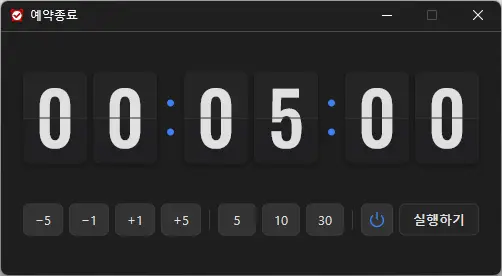
Update
- Streamlined installation with program information and desktop shortcut selection on the first screen
- Fixed truncated status text in some languages when the timer expires
- Refined translations of power options and the Run button in some languages
- You can automatically shut down your computer at a time of your choosing.
- The computer shutdown screen is automatically captured.
Website
- KTimer: https://ktimer.kilho.net
History
-
Version 2.0.1 (2026/10/27)
- Changed power mode selection to a highlighted two-button Power/Moon toggle, narrowed timer buttons to keep the controls on one row
-
Version 2.0.0 (2026/09/23)
- Introduced a stylish flip clock design for faster time checking
- Added intuitive buttons for quicker and easier time setup
- Improved shutdown and sleep selection with clear visual icons
- Applied sharper number styling and colors optimized for the dark interface
- Improved display behavior and reliability in certain user environments
- Redesigned the entire app for a lighter and smoother experience
-
Version 1.3.2 (2026/08/21)
- Improved menu options and behavior based on hibernation support
- Improved sleep mode switching and added a notification when switching fails
- Fixed an auto-start setup issue that could occur with certain security software
- Improved stability by reorganizing internal settings
- Improved update checking
-
Version 1.3.1 (2024/11/16)
- Added support for Italian, French, Russian, and Chinese languages
License
- KTimer is freeware.
- You can use it freely anywhere, including at work, at home, in government offices, and at school.
- You’re free to distribute it anywhere.
Download
 Download
(Windows)
Frequently Asked Questions (FAQ)
- Is this automatic shutdown program free?
Yes, you can use this program for free anywhere, including at work, at home, in government offices, and at school. - Does the program need to be installed?
No, you can run it right away without installing it. - Why is the screen captured before shutdown?
A screenshot is taken just before shutdown so you can easily check what was on screen when the computer shut down the next time you boot up. - Can I cancel a scheduled shutdown?
Yes, you can cancel or change the scheduled shutdown after setting it.
How You Can Use It
- You can estimate when a download or backup will finish and have your PC shut down automatically.
- Set your PC to shut down automatically while you’re away or before bed to save power.
- After an automatic shutdown, use the screenshot of your work when the PC shut down to pick up where you left off the next day.
Helpful Tips
- Set a shutdown time in advance to reduce electricity use and extend your hardware’s lifespan.
- For important work, check the screenshot taken automatically just before shutdown when you next boot up, then quickly pick up where you left off.
- If you often leave your PC running while you step away, scheduling a shutdown can help improve security.
Related Links
- Update announcement: https://kilho.net/archives/notice/2940