
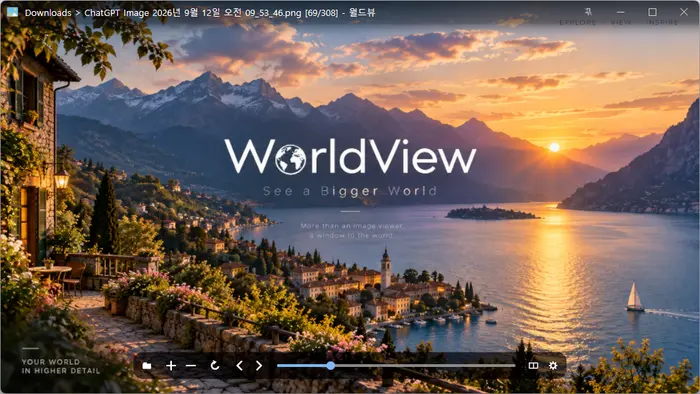
Update
- Added a playback bar for playing animations and moving to a desired position
- Added the P shortcut to play and pause animations
- Refined small app and file type icons
- Moved the context menu setting to the General settings page
- Added an opening indicator while the default app picker is being opened
- Opens JPEG, PNG, GIF, WebP, TIFF, BMP, SVG, JPEG XL, and many other image formats.
- Views images inside ZIP, RAR, and 7Z archives and PDF pages, page by page, without extracting them.
- Supports single-page, two-page, cover-page, and webtoon viewing modes.
- Supports animated images, auto-rotation, color conversion, and smooth zooming.
- Uses GPU rendering and image caching to display high-resolution images smoothly.
- Provides file associations, fullscreen viewing, image information, and Recycle Bin deletion.
Website
- WorldView: https://worldview.kilho.net
History
-
Version 1.1.0 (2026/11/22)
- Added a context menu option to open selected folders and archives together
- Added an option to reverse the previous/next actions of mouse side buttons
- Updated WorldView display in the default apps list and app selection dialog
- Changed the installer screen to follow the system display mode
- Added an option to create a desktop shortcut during installation
-
Version 1.0.7 (2026/11/14)
- Added a Bookmarks submenu and direct navigation, plus an editor for reordering bookmarks and moving them to the Recycle Bin
- Changed the bookmark editor to a full list view and added window resizing
- Moved Set as wallpaper and Open in Explorer above Delete file in the right click menu
- Changed previous and next folder navigation to follow the folder containing the current item
- Changed filename sorting to match Explorer by comparing folder paths and file extensions
- Added recent file reordering and Recycle Bin support
-
Version 1.0.6 (2026/11/13)
- Fixed animated images restarting before the end of long animations
- Fixed update notices appearing behind the main window when it was set to stay on top
- Added previous and next page navigation with the mouse back and forward buttons
- Added an option to start in full screen
- Added an option to fit small images to the screen
- Added a brief zoom percentage indicator at the center of the screen
- Added zoom step options from 5% to 25%
- Added zoom controls for continuous view
- Added editable shortcuts for all commands with up to four keys per command
- Added previous and next volume navigation to the side buttons at the end of a list
- Added an option to set the current image as the desktop wallpaper
- Added a Quit command to keyboard shortcut settings
-
Version 1.0.4 (2026/11/05)
- Added a retry when graphics device creation fails in some environments
- Added a setting to choose page turning or zooming as the default mouse wheel action
- Refined settings lists to highlight only the item under the pointer
- Fixed viewer exits after losing the graphics device
License
- WorldView is freeware.
- You’re free to use it anywhere, including at work, at home, in government offices, and at school.
- You’re also free to distribute it anywhere.
Download
 Download
(Windows)
Frequently Asked Questions (FAQ)
- What image file formats can I open?
WorldView supports over 30 formats, including JPEG, PNG, GIF, WebP, TIFF, SVG, HEIC, AVIF, and camera RAW files. - Can I view images inside archive files without extracting them?
Yes. Open an archive such as ZIP, RAR, 7Z, CBZ, or CBR to view the images inside one at a time. - Can I view PDFs too?
Yes. Open a PDF document and flip through it one page at a time. - Can I view two pages side by side, like a comic book?
Yes. Just turn on two-page view in the View menu. - Do animated GIFs play?
Yes. WorldView plays GIF, APNG, and animated WebP files. - Can I use it alongside other image viewers?
Yes. You can choose which file extensions to associate with WorldView.
Related Links
- Update announcement: https://kilho.net/archives/notice/2940